> For the complete documentation index, see [llms.txt](https://docs.pentaho.com/llms.txt). Markdown versions of documentation pages are available by appending `.md` to page URLs; this page is available as [Markdown](https://docs.pentaho.com/pdia-admin/9.3-administer/embed-and-extend-pentaho-functionality-cp/embed-and-extend-pdi-functionality/extend-pentaho-data-integration/create-pdi-icons.md).
# Create PDI icons
This design guideline is intended to help you maintain consistency with other user interface elements within Pentaho Data Integration. It's recommended that you create your icon in vector shapes using a design tool which saves or exports to Scalable Vector Graphics (SVG) Version 1.1 format. Vector shapes allow assets to be scaled up without loss of detail and crisp edges.
**Note:** The W3C offers a [list of programs](http://www.w3.org/Graphics/SVG/WG/wiki/Implementations) that support SVG.
## The anatomy of a PDI icon
This section reviews the breakdown of what goes inside the icons.
| Icon | ID | Description |
| ----------------------------------------------------------------------------------------------------------------------------------------------------------------------------------------------------------------------------------------- | ---------------------------------- | ----------------------------------- |
| 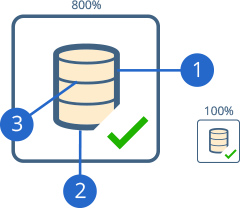
| 1: Icon fill color | The primary stroke color is #3D6380 |
| 2: Icon border color | The primary stroke is 1.7pt | |
| 3: Icon foreground line color | The secondary stroke size is 0.8pt | |
## Positioning action indicators
| Icon | ID | Description |
| ------------------------------------------------------------------------------------------------------------------------------------------------------------------------------------------------------------------------------------------------------------------------ | ------------------------------------------------------------------------------------------------------------------------------------- | -------------------------------------------------------------------------------------------------------------------------------------------------------- |
| 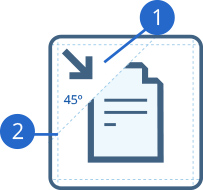
| 1: Action indicator | For any PDI icon which requires an action indicator, the icon must have the secondary element placed in the top-left or bottom-right corner of the icon. |
| 2: Forty-five degree slice for positioning action indicators | The primary element within the icon is recommended to have a 45º angle sliced through, and the secondary element placed in that spot. | |
### Action indicator badges
| Icon | Description | Icon | Description | Icon | Description |
| --------------------------------------------------------------------------------------------------------------------------------------------------------------------------------------------------------------------------------------------------------- | ----------------------------------------------- | ------------------------------------------------------------------------------------------------------------------------------------------------------------------------------------------------------------------------------------------------------ | ----------------------------------------------------------- | ---------------------------------------------------------------------------------------------------------------------------------------------------------------------------------------------------------------------------------------------------------- | ------------------------ |
| 
| Input / Import /Get / Download / Extract / Read | 
| Output / Upload /Export / Insert /
Put / Write
| 
| Validate |
| 
| Create | 
| Compare | 
| Wait |
| 
| Block | 
| Execute / Call | 
| Search / Lookup / Exists |
| 
| Bulk Load | 
| Encrypt | 
| Generator /Processor |
| 
| Delete | 
| Decrypt | 
| Upsert |
| 
| Update | 
| Move | 
| Set |
## Color palette


## Downloading PDI icon template
You can use the SVG template file, `PDI_Icon_Guide.ai`, as a starting point for creating a PDI icon. This file is bundled with the other samples in the Pentaho Data Integration SDK. You can download the SDK from the [Support Portal](https://support.pentaho.com/home).
---
# Agent Instructions
This documentation is published with GitBook. GitBook is the documentation platform designed so that both humans and AI agents can read, navigate, and reason over technical content effectively. Learn more at gitbook.com.
## Querying This Documentation
If you need additional information that is not directly available in this page, you can query the documentation dynamically by asking a question.
Perform an HTTP GET request on the current page URL with the `ask` query parameter, and the optional `goal` query parameter:
```
GET https://docs.pentaho.com/pdia-admin/9.3-administer/embed-and-extend-pentaho-functionality-cp/embed-and-extend-pdi-functionality/extend-pentaho-data-integration/create-pdi-icons.md?ask=&goal=
```
`ask` is the immediate question: it should be specific, self-contained, and written in natural language.
`goal` is optional and describes the broader end goal you are ultimately trying to accomplish on behalf of the user. GitBook uses it to tailor the answer towards what is most useful for that goal.
The response will contain a direct answer to the question and relevant excerpts and sources from the documentation.
Use this mechanism when the answer is not explicitly present in the current page, you need clarification or additional context, or you want to retrieve related documentation sections.